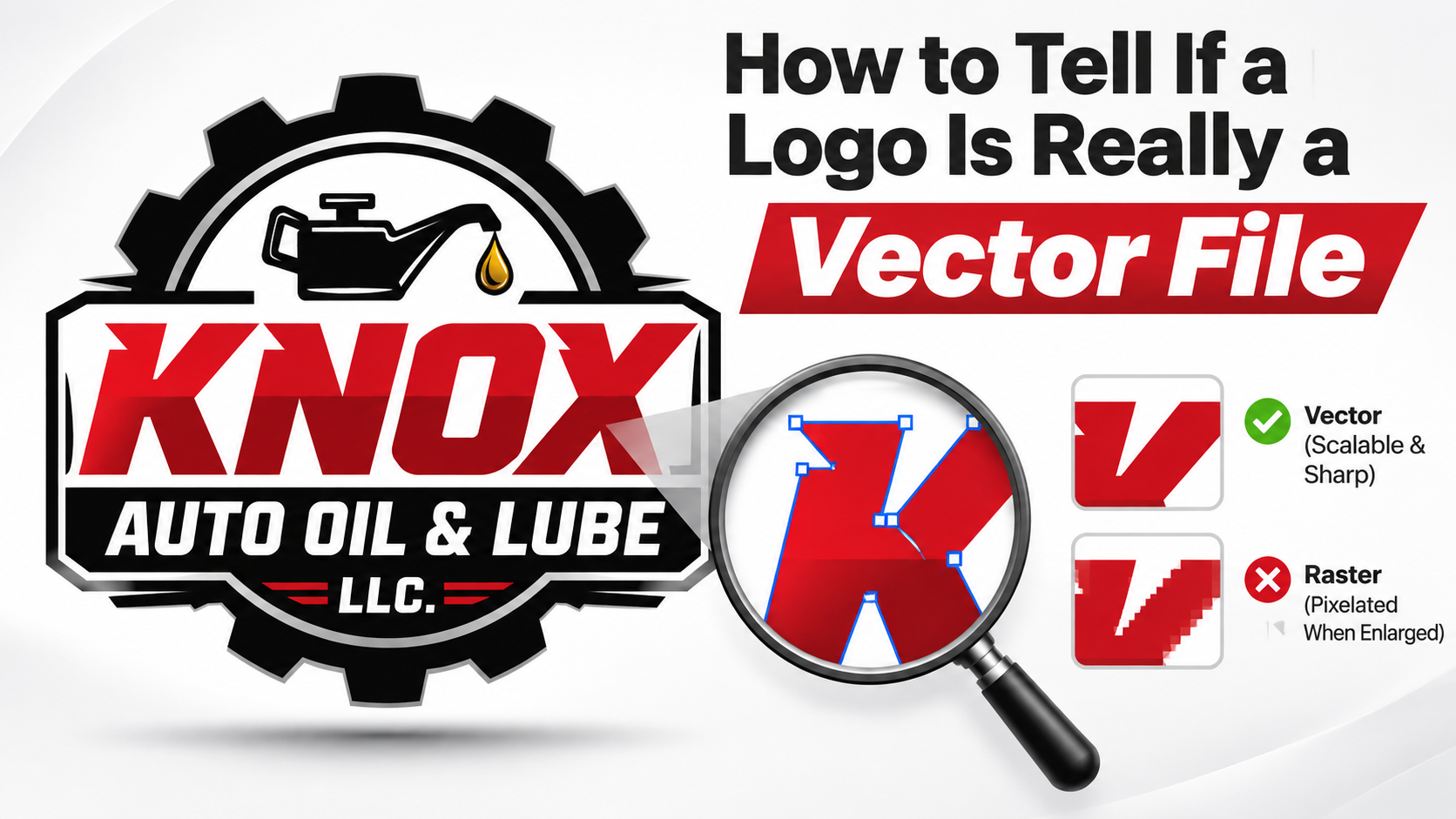
Your designer sends you a PDF logo. It looks sharp, opens perfectly, and seems ready for printing. But when you send it to a print shop, they tell you the file isn't actually vector.
Many business owners assume that receiving a PDF, SVG, EPS, or Adobe Illustrator file automatically means their logo is a genuine vector. Unfortunately, that's not always true.
A real vector logo is built using mathematical paths, shapes, and curves rather than a fixed collection of pixels. You can inspect these elements in vector editing software and scale them without the pixelation associated with enlarging raster images.
If you have Adobe Illustrator, you can check whether a logo is vector by switching to Outline View and inspecting individual paths. This is more reliable than judging the file extension or how sharp the logo looks on screen.
In this guide, we'll explain how to check if a logo is vector, identify misleading file formats, and understand what makes artwork suitable for professional printing, signage, and apparel production.
What Is a True Vector Logo?
A true vector logo is created using mathematical paths that define its shapes, lines, curves, and colors.
Unlike JPG and PNG images, which are made of pixels, vector graphics are not tied to a fixed image resolution.
This means a properly constructed vector logo can be scaled from a small business card to a large storefront sign without becoming pixelated.
For example, imagine a business logo containing a circular symbol and custom lettering.
In a raster image, those elements are represented by thousands of individual pixels. In a vector file, the circle and letters are constructed from paths that can be adjusted independently.
A genuine vector logo typically offers several advantages:
- Scalability: The artwork can be enlarged without raster pixelation.
- Editability: Individual shapes, paths, and colors can be modified.
- Clean outlines: Curves and edges remain mathematically defined.
- Flexible applications: The same master artwork can support different output sizes.
- Production compatibility: Vector paths can be useful for printing, signage, cutting, and other manufacturing workflows.
However, having vector objects does not automatically mean a file is professionally prepared. Poorly traced artwork can still contain distorted shapes, excessive anchor points, and unwanted overlapping paths.
If you're new to the subject, our guide on What Is Vector Tracing? explains how raster artwork can be recreated into scalable vector graphics.
How to Check If a Logo Is Vector in Adobe Illustrator
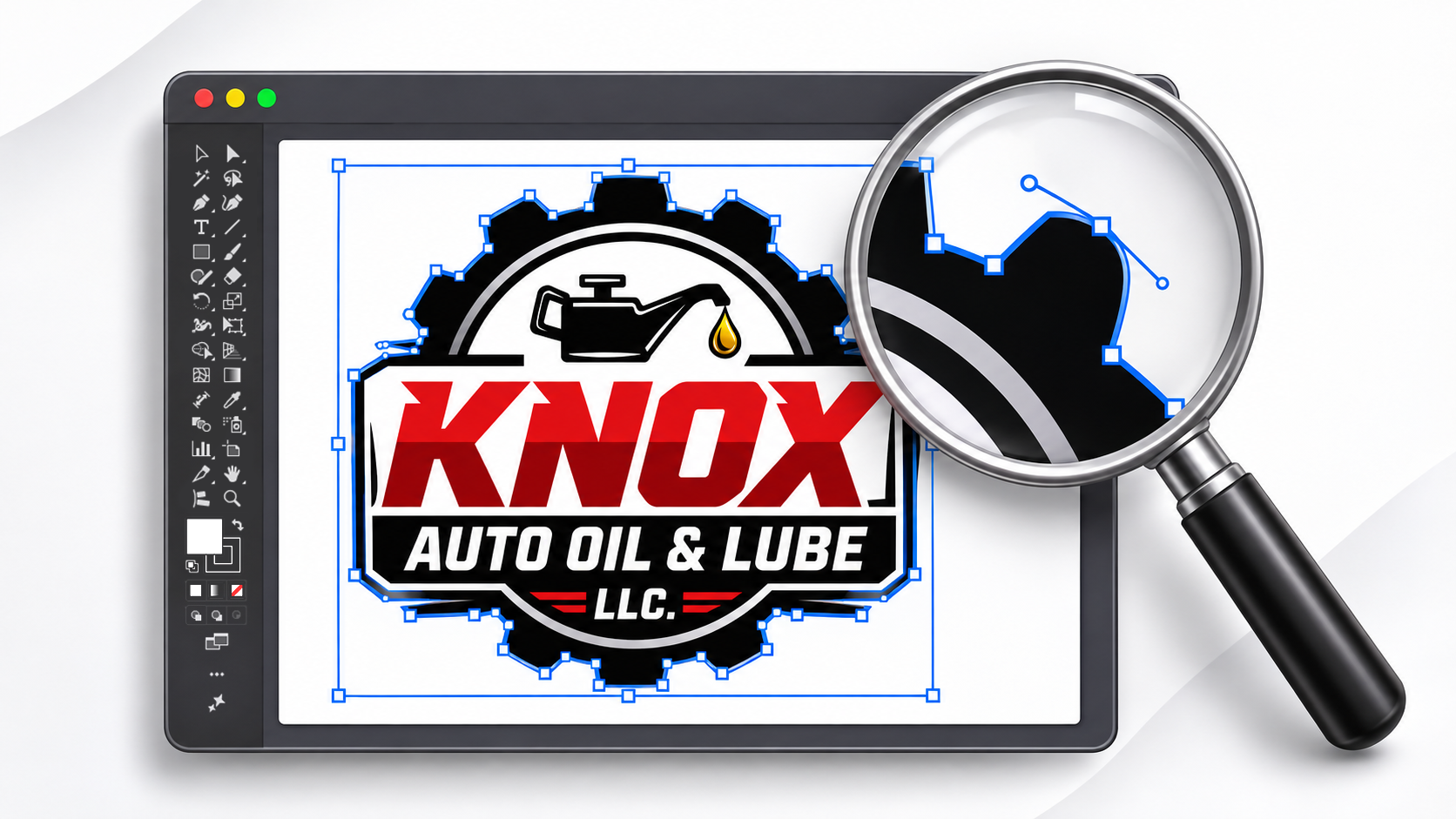 Adobe Illustrator is one of the most useful applications for inspecting whether logo artwork contains genuine vector elements.
You don't need to redesign the logo to perform this check. You simply need to examine how the artwork is constructed.
Step 1: Open Your Logo File
Launch Adobe Illustrator and open the file you want to inspect.
This might be an AI, EPS, SVG, or PDF file.
At first, the logo may look perfectly sharp. However, appearance alone is not enough to confirm whether the artwork is vector.
A high-resolution raster image can look smooth at normal viewing sizes, even when it contains no editable vector paths.
Step 2: Switch to Outline View
In Adobe Illustrator, choose View > Outline. On Windows, the shortcut is Ctrl + E; on macOS, Command + E. Repeat the command to return to Preview mode.
Outline View displays the underlying vector paths without the normal fills, colors, and effects.
If your logo contains genuine vector artwork, you should be able to see the outlines of its letters, symbols, and graphic shapes.
If the logo is only a placed raster image, it may appear as a rectangular image boundary rather than individual vector shapes. This is one of the most effective ways to inspect the structure of a logo file.
For details, see Adobe's official Outline View instructions.
Step 3: Select Individual Shapes
Return to the normal preview and use the Direct Selection Tool to inspect the logo.
Try selecting an individual letter, symbol, or graphic element.
A vector object generally reveals anchor points and editable paths.
For example, clicking a vector circle may display its path and control points.
If selecting the entire logo only highlights one rectangular image, it may be embedded or linked raster content rather than reconstructed vector shapes. Check inside groups and clipping masks before deciding.
Step 4: Check the Anchor Points
Anchor points define the structure of vector paths.
A professionally constructed logo should have paths that accurately represent the intended shapes.
Look for irregular curves, unnecessary points, distorted letters, and unwanted overlaps.
A file may technically contain vector paths while still being difficult to edit or unsuitable for certain production processes.
The important question isn't only whether paths exist. It's whether those paths accurately recreate the logo.
Step 5: Inspect the Links Panel
Open Window > Links in Illustrator.
The Links panel helps identify placed files, including linked and embedded images. A logo can also contain raster effects or images inside other artwork, so inspect each component instead of relying on the panel alone.
If the logo is simply a raster image placed inside an Illustrator file, inspecting the image content can reveal that no actual vector reconstruction has taken place.
Remember that a document can contain both vector and raster elements.
For example, a logo might have editable vector lettering but a raster-only symbol. That file contains some vector content, yet the complete logo is not fully vector.
You need to examine the logo itself, not just the document as a whole.
How to Interpret the Results
- Fully vector: The intended lettering and graphic components are built from independent vector paths or other suitable vector objects.
- Mixed artwork: Some logo components are vector, while others are raster images or rasterized effects. Check whether those elements are acceptable for the intended use.
- Raster-only logo: The logo itself consists of one or more pixel images without reconstructed logo paths. If editable paths are required, the logo needs redrawing or suitable vector reconstruction.
Can You Tell If a Logo Is Vector by Zooming In?
Zooming into a logo is a convenient first check, especially when you don't have access to professional design software.
Open the logo and enlarge the view significantly.
Look closely at the lettering, curves, circles, and edges.
If the image becomes visibly pixelated, it is likely being displayed from raster artwork.
If the edges remain smooth, the logo may be vector.
However, the zoom test alone cannot prove that a file contains genuine vector artwork.
A large, high-resolution raster image may appear sharp even at substantial magnification. Some PDF viewers also render and smooth image content in ways that make pixelation less obvious.
A better approach is to combine the visual zoom test with an inspection of the file's actual paths and objects. For professional printing, checking the document structure is more reliable than judging the appearance alone.
How to Check a Logo Without Adobe Illustrator
You can make a useful preliminary check without Illustrator, although some methods need other software or help from your print provider.
Check PDF Objects in Adobe Acrobat Pro
Open the PDF in Adobe Acrobat Pro and go to All tools > Use print production > Output preview. Choose Object Inspector, then inspect the logo objects for their type and properties. This is more informative than the file extension or a simple zoom test.
Adobe provides a walkthrough of Acrobat Pro Output Preview and Object Inspector.
Inspect an SVG File Carefully
SVG files are text-based. When opened in a suitable text editor, vector elements may be represented by elements such as <path>, <rect>, or <circle>; an <image> element can reference raster content. This is only a clue: fonts, clipping, masks, and mixed content may require a closer inspection in an SVG-capable editor.
Ask the Designer or Production Provider
If you cannot inspect the file, ask whether the complete logo—including its lettering, icon and effects—contains genuine vector objects. Request the editable source artwork and ask the production provider which formats and path specifications they require.
Is a PDF Logo Always a Vector File?
No. This is one of the most common misunderstandings about logo file formats.
A PDF can contain vector graphics, raster images, text, or a combination of these elements.
For example, someone can place a low-resolution JPG logo into a document and save it as a PDF.
The file now has a PDF extension, but the logo inside is still raster artwork.
Changing the file format does not automatically convert the image into vector paths.
This can create problems when a business sends the PDF to a sign company or printing provider expecting editable vector artwork.
The file might look acceptable on a computer screen but still contain only an embedded pixel image.
To check a PDF logo properly, open it in compatible vector editing software and inspect whether the logo includes independent vector shapes.
If the entire logo is raster and your production provider requires editable vector paths, it needs actual vector reconstruction rather than another file conversion.
Vector vs. Raster: How Different Logo Files Compare
Understanding common logo file formats can help you identify what to request from a designer.
Key takeaway: A vector-capable file extension does not guarantee that the logo inside is genuine vector artwork.
An Illustrator file containing only a placed JPG is still not a true vector recreation of that logo.
Similarly, saving a PNG as an SVG does not necessarily convert its pixels into editable paths.
A real conversion requires reconstructing the artwork using vector objects.
Need help choosing a format for delivery? See our AI vs. EPS vs. SVG vs. PDF guide for a separate comparison of common file types.
Why a Logo Can Look Vector but Still Be Raster
Some logos appear extremely sharp even though they contain no vector paths.
This happens because high-resolution raster images can produce smooth-looking edges when displayed at appropriate sizes.
For example, a 4000-pixel-wide PNG logo might look excellent on a website or presentation.
But if a sign company needs to enlarge it beyond its available resolution, pixelation may become visible.
Other issues can also make raster artwork difficult to work with:
- Compression artifacts around letters and symbols.
- Unwanted background colors.
- Soft or blurred edges.
- Limited ability to modify individual elements.
- Inconsistent quality when resizing.
A large raster image may still be perfectly suitable for some printing tasks if its resolution meets the printer's requirements.
However, when accurate editable paths are needed, a high-resolution PNG is not a substitute for genuine vector artwork.
Why Print Shops and Sign Makers Need to Verify Vector Files
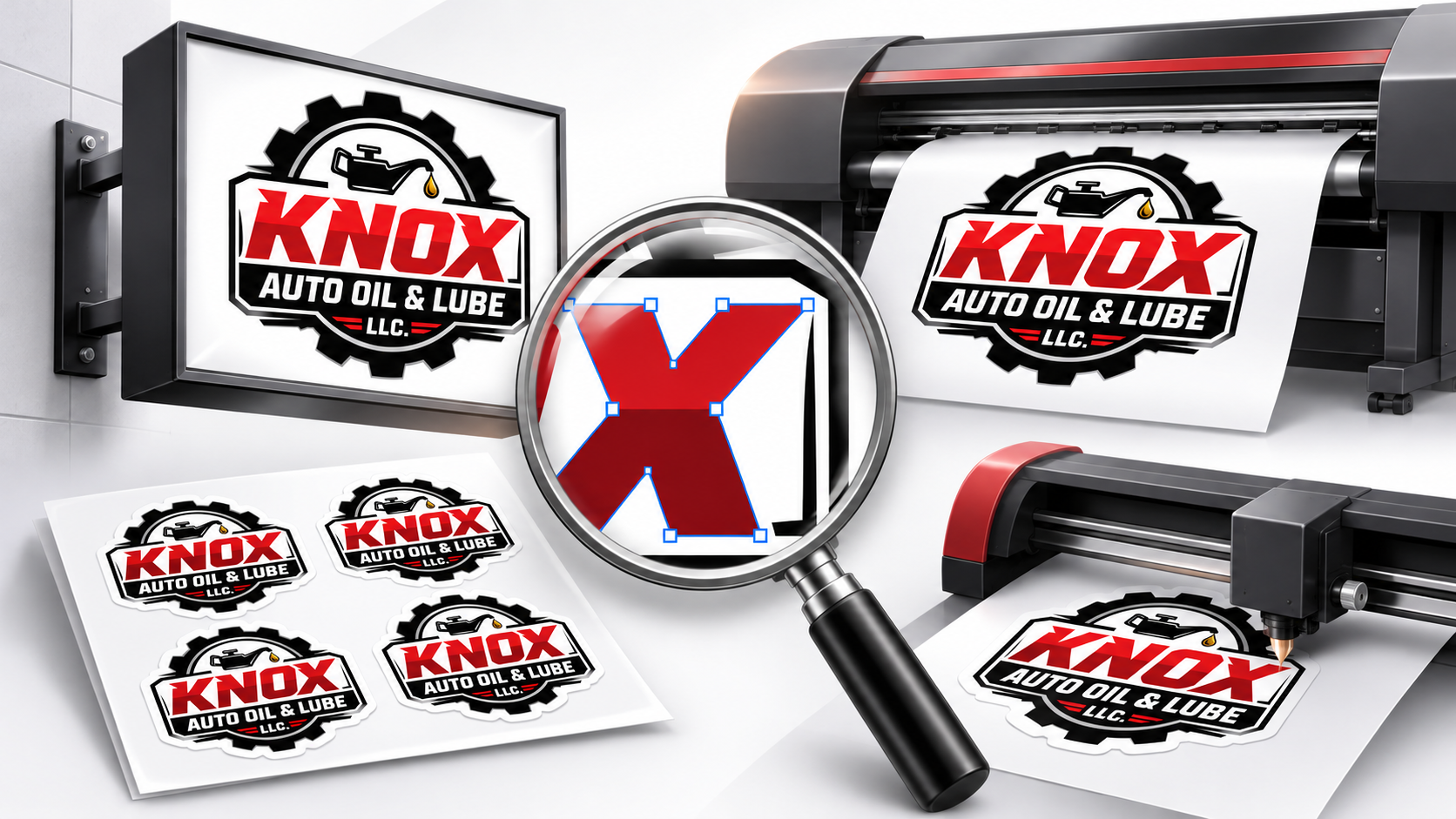 For printing and manufacturing businesses, checking the customer's logo before production can prevent avoidable artwork problems.
A file that looks acceptable on a computer screen may need additional preparation for a specific production process.
Screen Printing
Screen printing businesses often need artwork with clearly defined shapes and appropriate color separation.
A genuine vector logo can make it easier to inspect outlines and prepare individual color elements.
However, vector artwork is not automatically screen-print-ready.
The printer may still need to adjust colors, separations, line thicknesses, or other details according to the garment and printing method.
For supplier-specific requirements, see our vector artwork for screen printing service.
Sign Making and Vinyl Cutting
Sign makers may require editable paths for cutting vinyl graphics, lettering, and other elements.
An embedded raster image does not provide the same cut paths as correctly constructed vector artwork.
Even a genuine vector logo may require cleanup if its paths contain unnecessary points, open contours, or overlapping shapes.
See how we prepare vector artwork for sign making around clean editable geometry and the receiving shop’s specifications.
Large-Format Printing
Large-format printers commonly produce banners, wall graphics, vehicle wraps, and storefront signage.
A scalable vector logo helps maintain clean geometric edges at different sizes.
However, not every element in a large-format design must be vector. Photographs and other raster content can be suitable when prepared at the required resolution.
Embroidery and Apparel
Embroidery businesses may use vector logos as references when preparing stitch files.
Clear paths and defined shapes can help the digitizing process.
But AI, EPS, SVG, and PDF files are not automatically embroidery machine files. Embroidery requires digitized stitch information in a format supported by the intended equipment.
For all these applications, the receiving production provider should confirm the required file specifications.
What Should You Do If Your Logo Is Not Vector?
Discovering that your logo is raster doesn't mean you need a new logo design.
If you already like your existing artwork, you can have it professionally recreated as a vector.
There are two common approaches.
Automatic tracing uses software to detect image boundaries and generate vector paths.
This may work for simple, high-contrast artwork, but complicated logos often require additional correction.
Manual vector tracing involves reconstructing the original shapes, curves, symbols, and lettering using vector drawing tools.
This gives the designer direct control over path accuracy, spacing, and the finished artwork.
At ManualVectorTracing.com, we specialize in 100% manual vector tracing using Adobe Illustrator.
Rather than simply changing the file extension or relying on automatic tracing, we manually recreate artwork into clean, editable vector paths.
This is particularly useful when businesses have blurry logos, scanned artwork, old graphics, or missing original design files.
Our Logo Redraw service helps businesses, print shops, sign companies, and apparel decorators obtain manually reconstructed logo artwork when their current files are not suitable.
The quality of the original reference still matters. If important details are missing or unreadable, additional references or approval may be needed to reproduce the logo accurately.
How to Make Sure Your Logo Is Ready for Professional Use
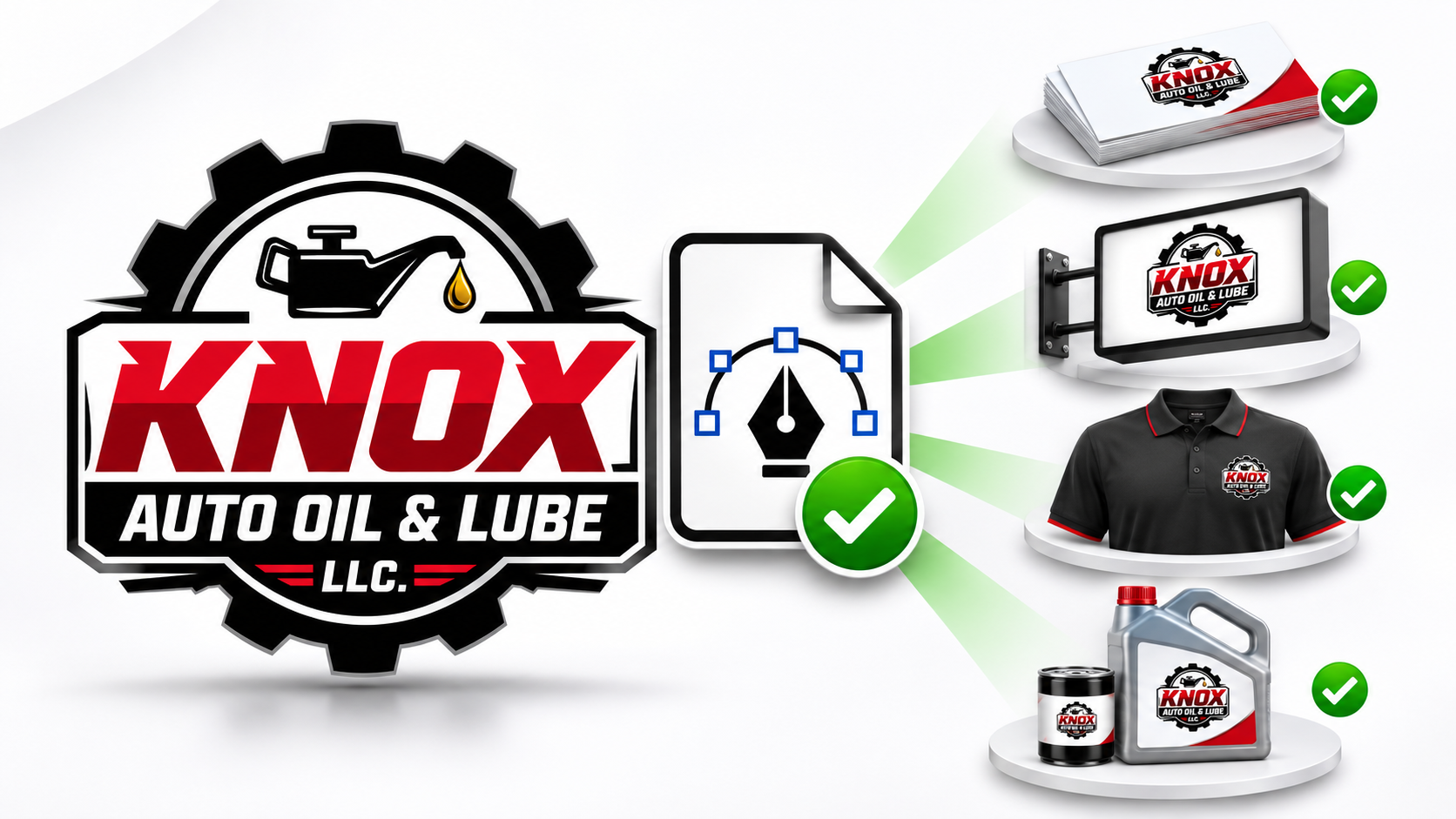 Before approving a logo file or sending it to production, perform a few essential checks.
First, confirm that the logo contains genuine vector paths rather than only an embedded raster image.
Next, inspect the lettering, curves, shapes, spacing, and colors against the approved original.
Check for unexpected gaps, duplicate objects, unnecessary anchor points, and distorted details.
If you need to edit the logo in the future, make sure the supplied artwork supports the level of editing you require.
For example, outlined lettering can preserve the visual appearance of a typeface, but it is not the same as fully editable live text.
Finally, confirm the file formats and production specifications with your print shop, sign company, or manufacturer.
A clean vector master is an important starting point, but different production workflows may require additional preparation.
For a separate pre-production review, use our print-ready vector file checklist.
Frequently Asked Questions
How can I check if my logo is vector?
Open the file in Adobe Illustrator and select View > Outline. Inspect whether the logo contains actual paths and shapes rather than a single placed image. You can also use the Direct Selection Tool to examine individual vector elements.
Is my logo vector if it's a PDF?
Not necessarily. A PDF can contain raster images, vector graphics, or both. You need to inspect its contents to confirm whether the logo itself is vector.
Is an SVG file always a true vector?
No. SVG supports vector graphics, but an SVG document can also include embedded or linked raster images. Check whether the actual logo is constructed using vector paths.
Can I convert a PNG logo into a vector file?
Yes. A PNG logo can be recreated as vector artwork using automatic tracing or manual vector tracing. Simply renaming the file or saving the unchanged image in another format does not create true vector paths.
Why does my printer say my PDF is not vector?
Your PDF may contain only an embedded JPG or PNG rather than editable vector artwork. The printer may also require specific path structures or production settings that your file does not provide.
Can a vector logo lose quality?
Genuine vector paths can be scaled without raster pixelation. However, a vector file can still contain inaccurate shapes, raster effects, incorrect colors, or other quality problems.
How to Confirm Your Logo Is Truly Vector
A logo file isn't genuinely vector just because it has an AI, EPS, SVG, or PDF extension.
What matters is how the artwork inside the file is constructed.
The most reliable method is to inspect the underlying objects using Illustrator, Acrobat Pro or another compatible application, rather than relying on visual sharpness alone.
If the logo is raster and your intended use calls for editable vector paths, a professional vector redraw can reproduce its existing appearance using clean, editable objects.
Before sending your next logo to a printer, check what's actually inside the file—not just the filename.
Not Sure If Your Logo Is Really Vector?
Have a PDF, JPG, PNG, or Illustrator file that your printer cannot use?
At ManualVectorTracing.com, we manually recreate low-quality logos into clean, scalable vector paths in Adobe Illustrator, with attention to original shapes, lettering, colors and detail.
We work with business owners, printing companies, sign makers, apparel businesses, and creative agencies that need professionally constructed vector artwork.
Not sure whether your logo is genuinely vector? Send us your existing file and tell us how you plan to use it. We will review the artwork and provide a free quote if professional logo reconstruction is needed.
Need a clean, print-ready vector file?
Get a Free Quote