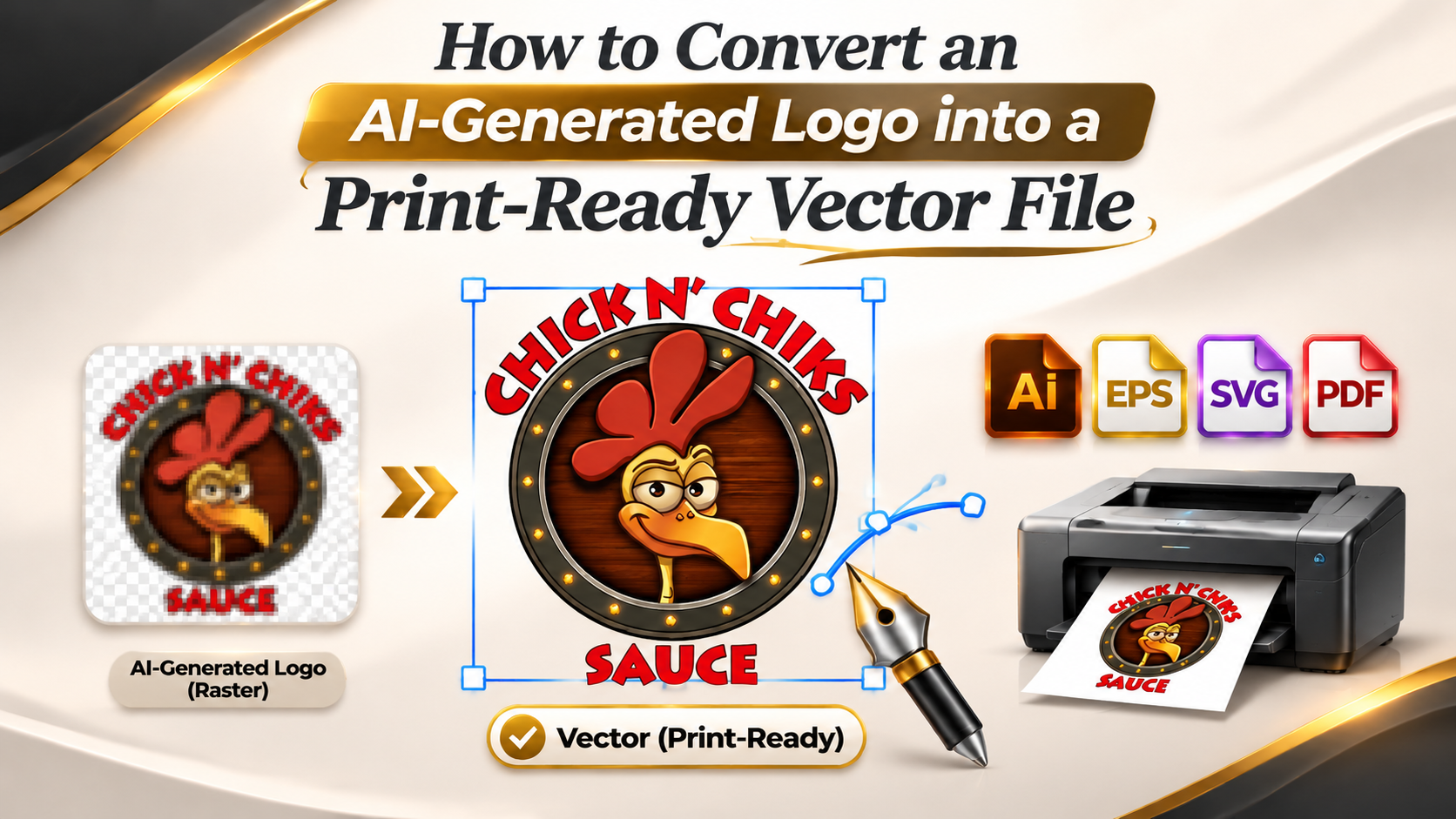
Your AI-generated logo may look finished on screen, but a printer might still ask for something you do not have: a vector file. You may have a PNG or JPG with the right colors and concept, yet its lettering becomes soft when enlarged or its shapes cannot be edited separately.
To convert an AI-generated logo into a print-ready vector file, first confirm the approved design, reconstruct the logo as actual vector paths, check the lettering and colors and prepare the final artwork for the specific print process. Changing a filename from PNG to SVG or placing a JPG inside a PDF does not accomplish that conversion.
This guide explains the workflow in Adobe Illustrator, the checks that matter before production, and when manual vector reconstruction is a better choice than automatic tracing. It is written for business owners, print shops, sign makers, apparel decorators and design teams working with existing AI-generated logos.
Why AI-Generated Logos Are Often Not Ready for Printing
Many AI image tools produce raster images, while some workflows can also export or create genuine vector graphics. The correct first step is to examine the actual file—not to assume that every AI-made logo is raster or that every SVG is vector.
The logo is a flattened image
When a logo is supplied only as a PNG or JPG, the symbol, lettering and background may be part of one pixel-based image. The shapes are not independent Illustrator objects, so changing a letter or adjusting a curve requires additional work.
Enlargement exposes limited resolution
A small raster logo can look sharp on a phone and pixelated on a storefront sign. The relevant issue is its effective resolution at the final display or print size. A sufficiently large raster image can still print well for some jobs; vector artwork becomes especially useful when editable, consistently scalable logo geometry is needed.
Lettering and small shapes need review
Generated wordmarks may contain inaccurate spelling, inconsistent letterforms, odd spacing, stray marks or uneven geometry. These are design details to confirm with the customer before redrawing; technical cleanup must not silently change an approved mark.
What Makes an AI Logo a Genuine Vector File?
Vector artwork is constructed from editable paths, curves, lines and shapes rather than only a fixed grid of pixels. Its geometric edges can be resized without the raster pixelation that occurs when a small JPG or PNG is enlarged.
| Feature | Raster logo image |
Reconstructed vector logo |
| Structure |
Pixels | Paths and shapes |
| Common delivery | PNG, JPG |
AI, EPS, SVG, vector PDF |
| Scaling | Depends on pixel dimensions | Paths scale without raster pixelation |
| Editing | Often flattened | Individual vector objects can be adjusted |
| Production use |
May work at sufficient resolution | Useful editable master for production preparation |
Important: AI, EPS, SVG and PDF are vector-capable formats, not automatic proof that the logo inside contains real vector paths. A document can hold an embedded raster image or a mixture of raster and vector objects. For more background, read our vector file formats guide.
A *genuine vector* and a *print-ready file* are also different things. Vector geometry does not automatically supply correct colors, separations, cut contours, minimum line weights or other vendor-specific settings.
How to Convert an AI-Generated Logo to Vector in Adobe Illustrator
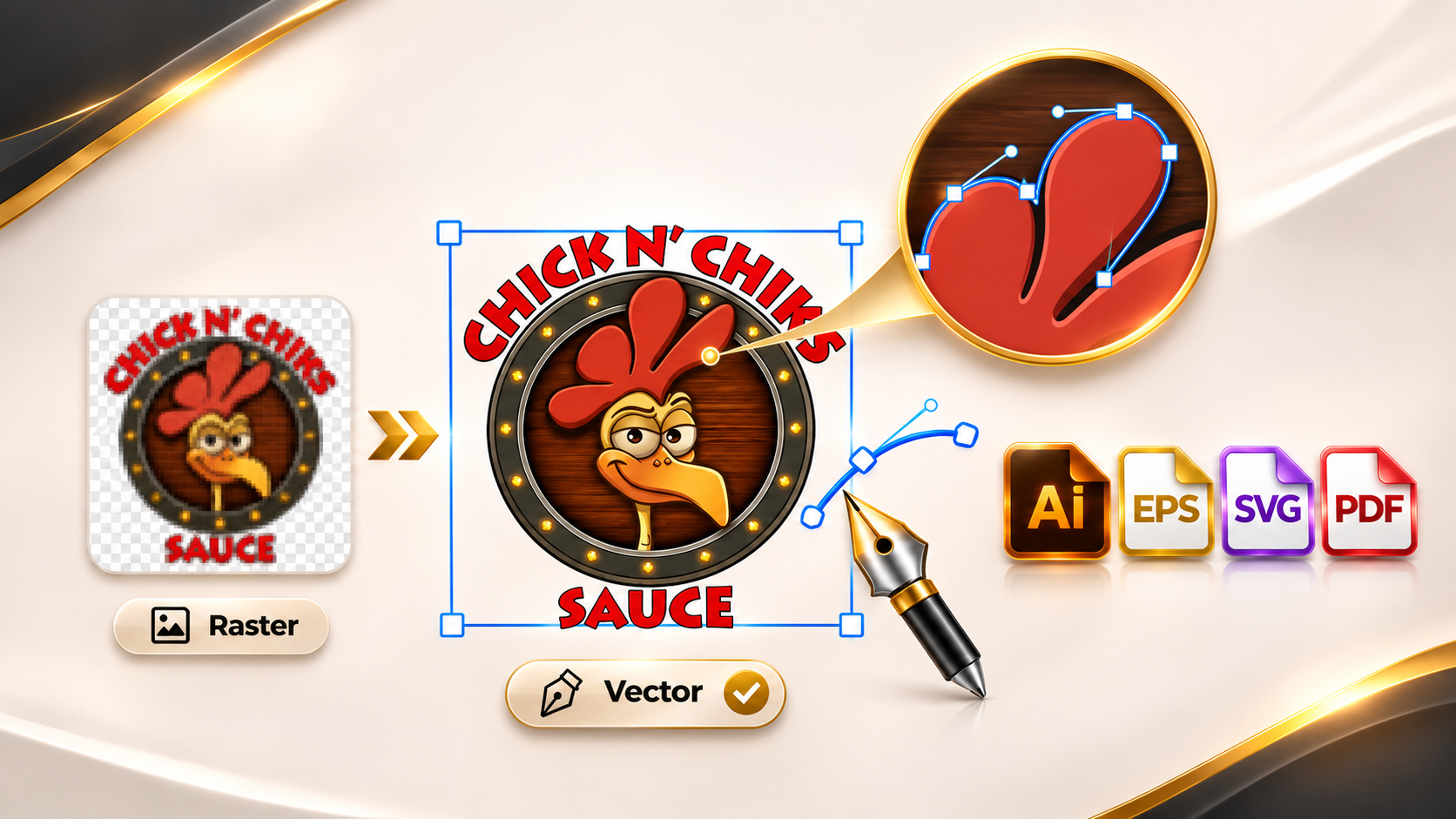
The following is a practical manual reconstruction workflow for an approved AI-generated logo. It describes how to build usable artwork, not a one-click conversion that promises to fix every design.
Step 1: Collect the highest-quality approved reference
Save the largest available source file. Ask the owner to confirm the exact business name, spelling, colors, symbol details and proportions. If the generated design has ambiguous lettering or missing details, request clarification rather than inventing those elements.
If the customer has a brand guide, earlier logo version or approved color values, keep them beside the reference. A blurry image does not always require extensive work, but unclear details can increase the amount of reconstruction and approval needed.
Step 2: Place the image on a locked reference layer
Create an Illustrator document and use File > Place to import the PNG or JPG. Keep the original on a separate locked layer and draw the new artwork on another layer. Importing a raster image into Illustrator does not make it vector.
Step 3: Rebuild the symbol with intentional vector paths
Use the Pen Tool, Shape Tools and suitable vector drawing tools to reconstruct the main geometry. Work from large outer shapes to internal details. Compare proportions, spacing, negative space and curve direction with the approved reference.
Do not reproduce random pixel noise as extra anchor points. Aim for accurate shapes with clean, manageable paths. The goal is faithful reconstruction rather than redesign.
Step 4: Reconstruct and verify the lettering
If a recognizable font accurately matches the logo, use it only when appropriately licensed. If the lettering is customized or malformed, recreate the required letterforms as vector shapes after confirming the intended spelling and appearance.
Check alignment, spacing, curve consistency and small-size legibility. In Illustrator, Type > Create Outlines converts live text into vector outlines, but outlined text is no longer directly editable as text. Keep a separate editable-text version when future wording changes are expected.
Step 5: Standardize approved colors and remove artifacts
Compare the reconstructed logo with approved color values where available. A seemingly solid-colored area in an AI-generated image can contain unwanted variations; those may be replaced with consistent vector fills if this matches the approved design.
Inspect for stray objects, duplicate paths, unintended gaps, irregular strokes and misaligned shapes. RGB, CMYK and spot-color choices should follow the printer's requirements; converting color modes alone does not guarantee a perfect printed color match.
Step 6: Inspect the completed paths
Use View > Outline in Adobe Illustrator to inspect vector geometry, then Direct Selection to review individual shapes. Check for unnecessary anchor points, unintended overlaps and open paths where closed contours are required. Recheck the result against the approved image at both normal viewing size and the smallest planned application size.
A technically clean redraw should still preserve what the customer approved. Any intentional change to letters, symbols, colors or layout should be confirmed before final delivery.
Step 7: Save, export and reopen the deliverables
Save the editable AI master and prepare the requested EPS, SVG, PDF and raster previews as appropriate. Reopen the exported files to confirm that the intended shapes remain vector, no assets are missing, and the appearance is consistent. Keep the original master and any outlined production copy separately.
Before sending files, ask the printer or manufacturer which formats and settings its workflow actually accepts. An EPS, SVG or PDF extension alone is not a production approval.
Manual Vector Redrawing vs. Automatic Image Trace
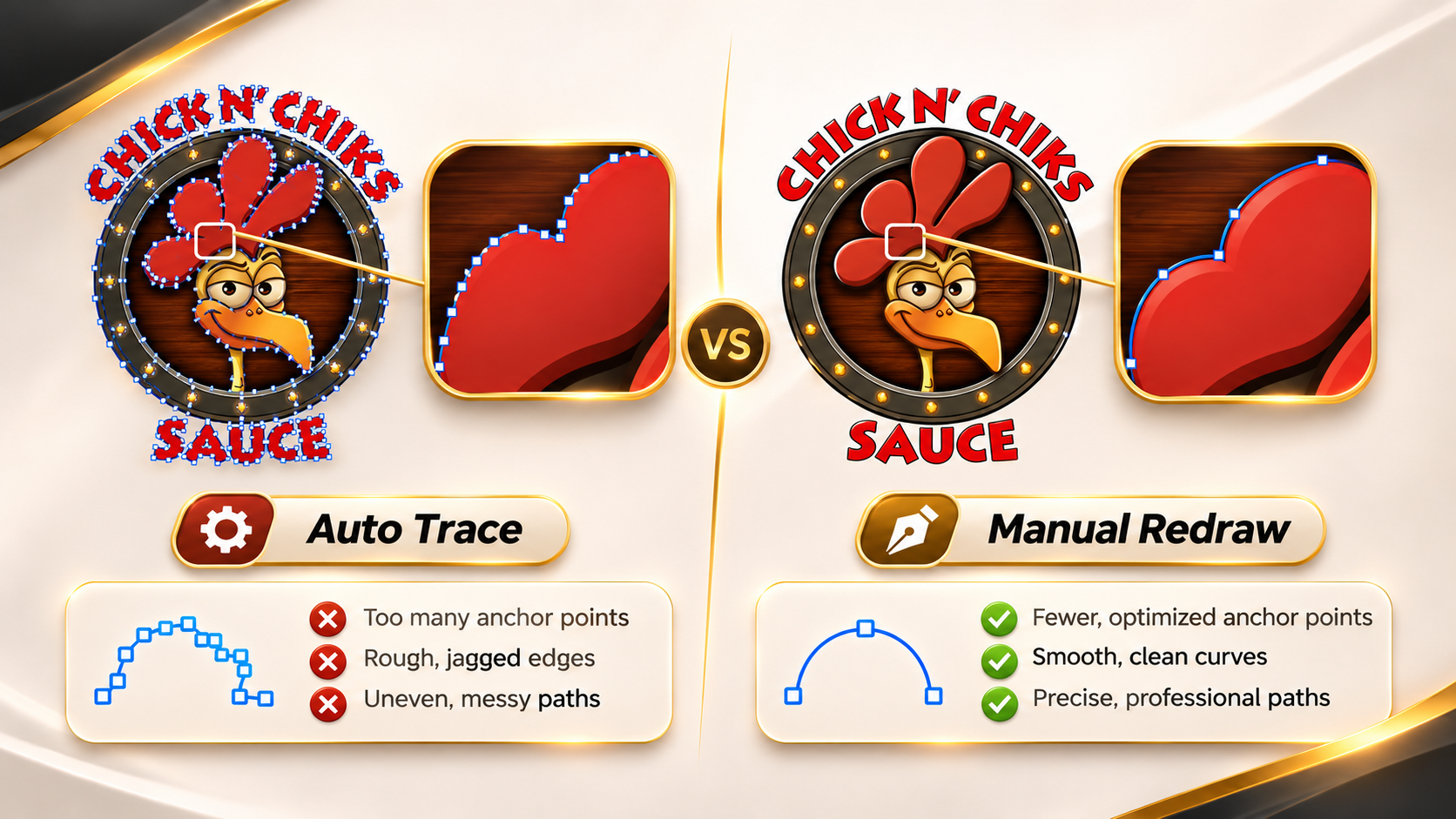
Adobe Illustrator Image Trace and similar tools can quickly create paths from raster graphics. They may be sufficient for uncomplicated, high-contrast artwork, especially when the source is clean and the intended use is not demanding.
However, automatic tracing can follow compression noise, distort lettering or create unnecessary points. Manual reconstruction lets a designer choose the intended geometry and rebuild wordmarks individually. Neither method should be judged only by how fast the initial paths appear; inspect the resulting artwork and any cleanup it still requires.
| Consideration | Automatic tracing | Manual reconstruction |
| Initial paths |
Generated by software |
Drawn and controlled by a designer |
| Curves and lettering |
May require substantial cleanup |
Can be built to match approved shapes |
| Reference quality |
Strongly affects output |
Still requires clarity and confirmation |
| Best use |
Simple artwork or a starting draft |
Logos requiring precise manual recreation |
At ManualVectorTracing.com, we specialize in 100% manual Adobe Illustrator reconstruction, not automatic tracing. Our dedicated AI Logo to Vector service is for existing AI-generated logos, wordmarks and brand symbols. Non-logo illustrations belong to a separate service category.
How to Prepare the Recreated Logo for Its Final Use
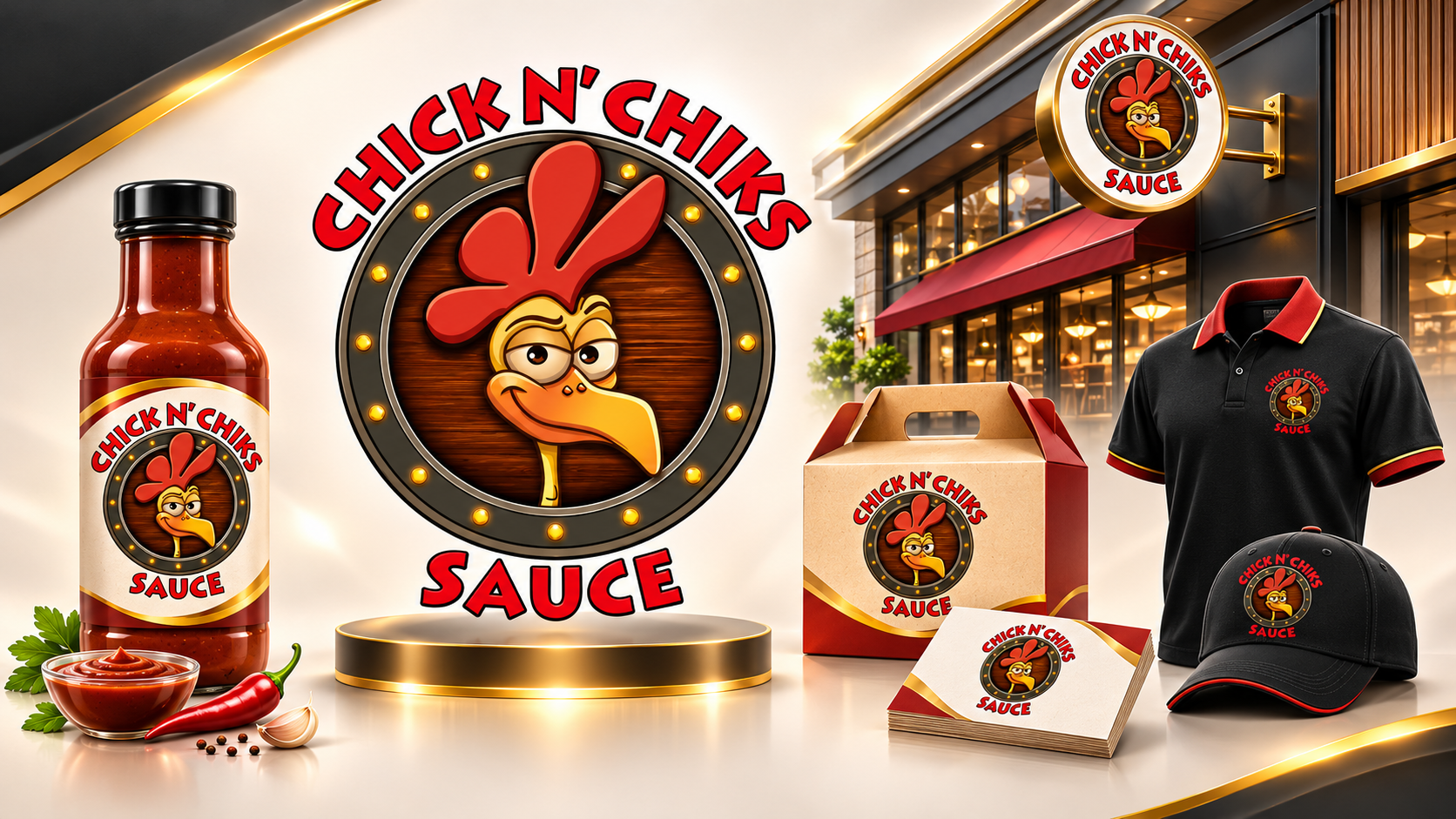
Once you have a vector master, confirm what the receiving production provider needs. A single master can support several applications, but additional preparation may be required for each.
Business cards and stationery
Check the final logo size, legibility, colors and any supplier-specific export settings. Bleed and safe margins normally concern the complete print layout, not simply the logo vector itself.
Screen printing and apparel
Printers may require separations, specific spot colors, minimum line weights or simplified fine details. A vector logo helps with editing and separations, but is not automatically ready for every screen printing method.
Signs and vinyl cutting
For printed signage, check scalable geometry and production color settings. Vinyl cutting may require closed, usable contours and adjustments for tiny elements or complex overlaps. The sign shop should confirm whether separate cut paths are needed.
Packaging and labels
Maintain consistent approved brand shapes and provide color references when available. Packaging suppliers may specify particular file settings or color systems, and the complete label or packaging layout may have its own production requirements.
Embroidery
A vector logo can be a useful reference for embroidery digitizing, but AI, EPS, SVG and PDF files are not stitch files. Separate digitizing is required for the target machine and garment, and some fine details may need approved simplification.
Print-Ready Vector Logo Checklist
Before approving delivery, verify the following with the designer or vendor:
- Design accuracy: Company name, spelling, symbols, spacing and colors match the approved reference.
- True vector artwork: Main logo shapes and lettering are constructed as paths, not only an embedded raster image.
- Clean geometry: No unintended gaps, duplicate objects, distorted contours or unnecessary points.
- Small-size usability: Text and details remain practical at the intended reproduction size.
- Editable master: An AI or other agreed editable source file is included and preserved.
- Export verification: AI, EPS, SVG or PDF outputs open correctly and retain the expected objects.
- Vendor requirements: The print shop confirms color, separation, cut-path or other production specifications.
For further production checks, use our print-ready vector file checklist.
Common Mistakes to Avoid
Renaming a file instead of reconstructing it. A JPG renamed as SVG—or merely placed inside an SVG—does not become editable vector geometry.
Treating an AI-generated concept as final without review. Check spelling, symbols and unexpected artifacts before tracing so the vector master does not preserve an accidental mistake.
Assuming every vector is ready for every machine. Embroidery, cutting, screen printing and packaging may all need additional preparation.
Changing the design without permission. Reconstruction should preserve the approved logo. If missing details must be interpreted, ask the owner to approve the result.
Can You Convert an AI-Generated Logo to Vector for Free?
Some design applications offer automatic bitmap tracing, including free options. These can be useful for learning or for uncomplicated shapes, but they do not guarantee precise lettering, editable structure or production compatibility.
If you try an automatic method, examine the paths closely, compare the output with the approved logo and ask the printer whether the result is usable. Manual reconstruction may be worthwhile when the logo is central to a brand, contains custom typography or must work across several production methods.
When Should You Hire a Professional AI Logo Vectorization Service?
Professional help is especially useful when you have an approved AI logo but only a JPG or PNG; a printer requests paths; a generated wordmark needs careful reconstruction; or auto-traced contours do not reproduce the original reliably.
For business owners, print shops, sign makers and apparel decorators, a clean vector master can reduce repeated artwork problems, provided it is prepared for each intended use. To get a realistic quote, send the clearest image you have, any brand references, the intended application, required formats and your deadline.
Before requesting a redraw, confirm that you have the necessary rights or permission to use the logo and any incorporated assets. Recreating its paths does not, by itself, establish copyright or trademark ownership.
Frequently Asked Questions
Can an AI-generated logo be converted to a vector file?
Yes. A raster AI-generated logo can be manually reconstructed as paths in Adobe Illustrator or converted with appropriate tools, then inspected for fidelity and usability.
Can I convert an AI logo from PNG to SVG?
Yes, but the logo needs genuine vector geometry. Saving the same embedded PNG inside an SVG container does not create editable shapes.
Is an AI-generated logo automatically print-ready?
No. Some AI workflows can provide vector artwork, while others produce raster files. In either case, the final logo needs checks for construction, accuracy and the receiving vendor's specifications.
Which format is best for printing an AI-generated logo?
It depends on the printer. AI, EPS and vector PDF are commonly used in compatible workflows; some vendors also accept SVG. Ask which format and settings the vendor requires.
Can distorted AI-generated lettering be fixed?
Often, yes. A designer can reconstruct letters after confirming the intended words and visual appearance. Unclear typography should not be guessed without approval.
Does vectorizing an AI logo change its design?
It need not. A faithful redraw aims to preserve the approved logo, while any intentional corrections or simplifications should be agreed upon.
Can a vector logo be used for embroidery?
It can serve as a reference for digitizing. Embroidery equipment generally needs a separate stitch file, not the vector master itself.
How much does AI logo vectorization cost?
Pricing depends on complexity, lettering, source clarity and delivery requirements. Submit the actual artwork for a project-specific quote instead of assuming a fixed price applies to every logo.
Turn Your AI-Generated Logo into an Editable Vector
A logo concept does not need to be redesigned simply because it arrived as a PNG or JPG. If you want to preserve your approved artwork while preparing it for professional use, the next step is accurate vector reconstruction and a final production check.
ManualVectorTracing.com manually recreates AI-generated logos in Adobe Illustrator, focusing on clean shapes, accurate lettering and editable paths. We work with brands, print shops, sign makers, apparel businesses and agencies that need reliable artwork for their workflows.
Send your AI-generated logo for a free quote, and tell us where the artwork will be used. We will review the image and the requested requirements before confirming the project scope.
Need a clean, print-ready vector file?
Get a Free Quote